Tag Archives: technology

Dynamic DNS with Unifi and cPanel

For as long as I’ve had my home lab setup, I’ve had some way of remotely connecting into it via a VPN.

Things all started with an OpenVPN server running in a VM (and some port forwarding magic) but as I’ve migrated over to newer (and simpler) VPN solutions, there is one thing that was always there – a Static IP.

In practice, Dynamic IPs don’t change often but can change at any time. The simplicity of not having to worry about this (and have to change configurations accordingly) meant a Static IP was essential.

Not all ISPs, especially those for home users, supported Static IP facilities at all – and those were usually niche suppliers and/or higher costing services.

In the last couple of years, possibly in part due to the IPv4 pool shortages, this small pool has further diminished. This includes my current supplier, who is no longer offering new customers a Static IP option. It remains for existing customers at the moment (including myself), but it is only a matter of time before this changes.

Another solution is needed.

Dynamic DNS

The obvious option, which often gets suggested is Dynamic DNS (DDNS). This creates a hostname and links it to your Dynamic IP (which must be updated if it changes).

There are many services which offer this both free/commercially, you’d set-up an account and be provided with a hostname (usually a subdomain under the domain of the service) and some software/configurations to handle updates.

There is another option if you have a Ubiquiti setup and cPanel hosting service for your domain.

To do this you need the following:

  • A Ubiquiti router – it needs to handle the connection to your ISP directly (I have a Ubiquiti Cloud Gateway Ultra)
  • A cPanel based hosting service – it needs to be managing the DNS of your domain name, it also needs to be enabled by your hosting service. If you see the Dynamic DNS option you should be good.

Setting up a Dynamic DNS sub-domain

To setup a Dynamic DNS domain, it’s really simple.

In the Dynamic DNS option, create a new domain:
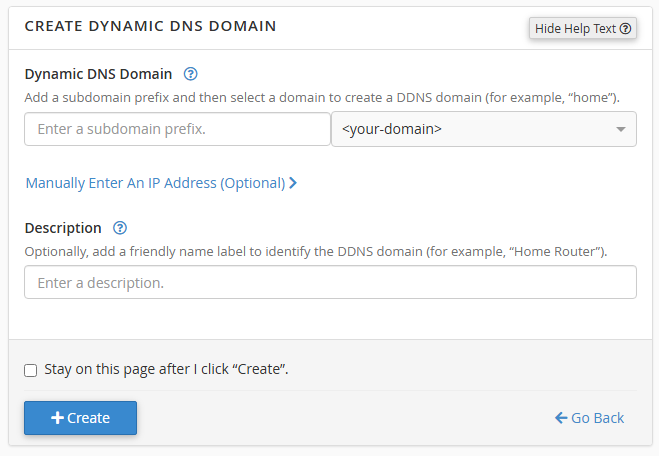
Make sure to leave the optional IP field blank – this should be populated automatically in the next step and should allow you to check the configuration is working.

When done, the entry will be created with an IP listed as None and you should see a URL in the format:

https://<domain-name>/cpanelwebcall/<long-string-of-characters>

Keep this handy as you’ll need it in the next step.

Setting up Dynamic DNS in Ubiquiti

To setup the Dynamic DNS link, in your Unifi Controller interface go to Settings. Click on Internet, then click on your WAN interface (the one your internet is on).

In this screen find the Dynamic DNS option on the screen and open the dialog to add a new entry. In the screen, select Custom for the Service type and fill in the details as follows:

  • Hostname – this should be the part of the URL after the domain name
  • Username/Password – this can be anything as it’s isn’t used (but is required)
  • Server – this should be the domain name the Dynamic DNS will be on (from the URL) – don’t include the https:// prefix.

When done click Create and then Apply Settings at the bottom. This should automatically trigger a push of the IP to the DDNS service and an update whenever the IP changes.

To check this worked, look at the Dynamic DNS screen in cPanel and the None in the IP field should have changed to your external IP. You can also perform an nslookup on your DDNS domain and confirm your external IP is returned (this may take a bit of time to propagate).
One Month with Sky Q

I’ve been a customer of Sky for TV since Jan 2010 and have using the same Sky+HD box (DRX890) since then. When I saw an offer for Sky Q (Silver plus one Mini box) for £30 each upfront, I jumped at it.

Why Sky Q?

I chose to go for Sky Q for a few reasons: mainly the ability to have access to TV in other rooms of the house. Without having to have another satellite feed installed in that location. Freeview isn’t an option due to an almost non-existent signal. You can get a basic signal if you run it through two signal boosters – and even then it is very unstable and you don’t receive all the channels. Satellite doesn’t have these concerns so Sky Q is an obvious choice.

In addition to this primary reason – I’m also a big fan of technology so the idea of having a brand new “cutting edge” system appealed greatly. The ability to copy recordings from the box to a mobile/tablet device also appealed, as well as being able to stream channels to those same devices.

First Impressions

My first impressions of Sky Q were good on the whole.

The interface is fast, fluid and responsive. It is also consistent between the devices – even on mobile/tablet devices when you can reasonably see that interfaces would need to be significantly adapted, the fundamental design is the same.

The new touch remote is also very useful, it was tricky to get used to initially but once you figure it out, it’s a lot faster to use regularly. You also get a traditional IR remote for the box which is useful to have around (and I assume should also work as a spare for the Mini box, although I haven’t tried that out).

I had one Mini box installed on a smaller TV upstairs – this works great for the most part. I’ve had some problems with it losing it’s settings and insisting on going through “setup” again – this would be fine if it was connected wirelessly (as recommended by Sky) however connecting it via Ethernet causes problems in setup. More about this in the next section.

The tablet app works tremendously well and I can watch whatever I want – live TV, catch up or recordings from the box. I’ve also turned off a recording downstairs and resumed it on my tablet without much of a problem.

Ethernet vs Wireless

Sky recommend that Sky Q is connected up via the home wireless network. I assume that this is due to the fact that it is “easier” and does not require a wired connection. Therefore it is “simpler” for less tech savvy users (and faster to install).

There is nothing wrong with doing this, the boxes both have Ethernet ports however it is a “non standard” installation and isn’t the preferred method of install. So “non-standard” that my installer had to call to get permission to install the system that way. I thought that was a bit much.

A wired installation is much easier for me since my home is already fully wired plus I’d heard of problems with the way Sky Q handles wireless communication from other users of my wireless AP – stories of wireless networks being crippled by the Sky Q devices misbehaving and messing with signals. I wanted to avoid that.

It should be noted that in order to do this properly we had to disable the wireless networks (both 2.4GHz and 5GHz) on the Sky Q Silver box AND the Sky Q Mini box. In addition, I had to turn ON the wired connection on the Sky Q Mini box (this only affected the Mini box, it was enabled on the Silver box).

One major problem with this is, despite wireless being turned off in the settings, when the Mini box forced me to go through setup again, it waited several minutes for a wireless connection from another box before “finding” it on the wired connection. This is pointless, if a wired connection is there, it should just use that (surely?)

The Problems

While the benefits of Sky Q and big – there were some teething issues and quite nasty bugs. Most required a forced reboot which was luckily quite quick to complete but still annoying.

The Silver box is pretty stable apart from 2 issues early in the first few weeks.

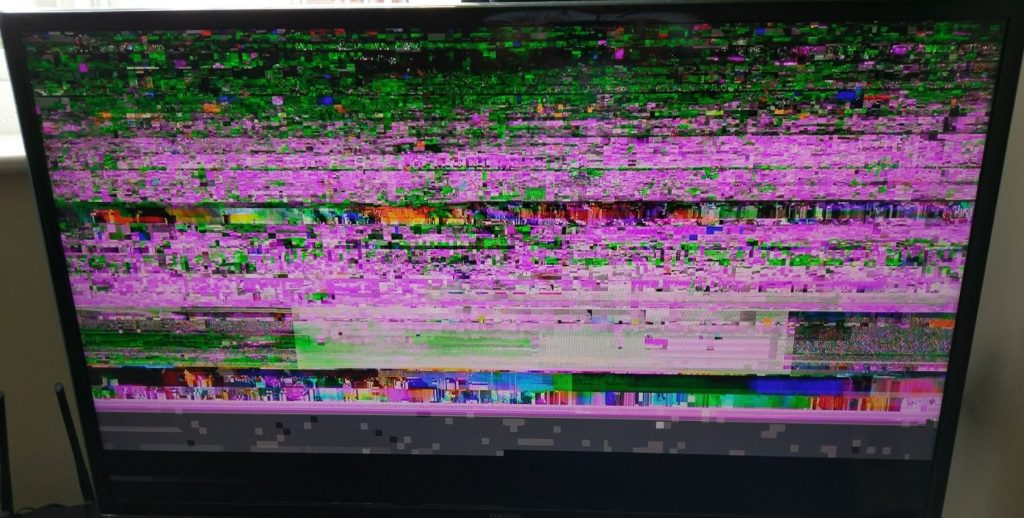
The first problem was that the box refused to come out of standby – this was fixed by a reboot. The second was a little bit nastier – the box came out of standby fine, and all appeared well but (a) I couldn’t watch any channel apart from Channel 4 – you could change the channel but no picture appeared apart from on Channel 4 (SD only), and (b) you couldn’t play back any recordings, you could try but all you’d get is a blocky mess, like this:

20161022_skyq_blockymess

After rebooting for these problems, everything has been fine recently, far more stable recently when compared.

The Mini box however has been far more problematic.

Discounting the few hours I couldn’t get it to work at all (couldn’t see the Silver box) which turned out to be that one of the network cables linking upstairs with downstairs (where the Silver box was) had become disconnected (oops).

The box crashes every few days – usually the main symptom of this is that it refuses to come out of standby when you want to use it. A reboot always solves this but it happens far too regularly. 50% of the time you have to go through “setup” again on the Mini box, which slows things up further, especially due to the wireless oddity mentioned above.

Another curious one is the “missing menu” bug – where the box does come out of standby and starts showing a live channel in a small window but no menu. And the box freezes forcing you to reboot it to get back in. It looks something like this:

20161022_skyq_miniboxcrash

Hint: You can still watch the channel displayed if you want to hold off rebooting for a while!

The only other bug I’ve seen is occasional errors downloading on demand shows due to “No subscription” – which is obviously wrong.

Completing the Experience

A couple of things I’d like to see added to the Sky Q ecosystem to “complete” the experience (and stuff I’d like fixed):

  • More “apps” to be added including 3rd party ones like “Plex”
  • Never Miss facility available via the box
  • Watching episodes via the tablet doesn’t download the next episode of shows automatically like it does on the box
  • Watching individual episodes causes it to download the next episode even when you only want to watch one episode – a toggle to turn it off on a series-by-series basis might be nice.

Conclusion

Sky Q is a great system, needs a bit of polish but all the parts are there. A couple of bugfix updates along, I think we’ll have a solid system.

I’ve read about people going back to the old Sky+HD system after unsuccessful attempts to upgrade to Sky Q but I’ll be sticking with it.